Private Bitcoin Accounting | Opencode, Maple AI & Clams
Set up private AI for Bitcoin accounting. Opencode, Maple AI, and Clams give you encrypted, natural-language access to your books without exposing data.
This guide sets up private AI for bitcoin accounting where your data is encrypted before it leaves your machine. Opencode as the AI terminal agent, Maple AI to encrypt prompts in transit and process them in hardware-isolated enclaves, and Clams with agent skills for the accounting engine.
The Stack
- Clams CLI: accounting engine. Connects wallets, tracks cost basis, generates reports.
- Clams Agent Skills: teaches your AI agent every Clams command, workflow, and prerequisite step.
- Maple AI: local proxy that encrypts data before it leaves your machine, processed in hardware-isolated enclaves.
- Opencode: open-source AI terminal agent. Connects to any OpenAI-compatible endpoint, including Maple's local proxy.
Install Clams and Agent Skills
Install the Clams CLI:
curl -fsSL https://clams.tech/install.sh | shRun the guided set up:
clams initThe paid workflows in this guide (sync, import, record, and report) require a signed-in user with an active license. Your accounting data stays on your machine. The Clams hosted services only handle sign-in, licensing, billing, and market rates.
Install the agent skills:
clams skills install --globalThe --global flag installs the skill to your global agent config, so it's available in every project. At the time of writing, Opencode picks it up on next launch. In our internal evals, agents with the skill loaded complete common accounting workflows reliably that they otherwise fumble. The skill eliminates the guesswork: correct command sequences, proper flag usage, prerequisite steps handled automatically.
Install Maple AI and Start the Proxy
Download the Maple desktop app from trymaple.ai/downloads (macOS and Linux at the time of writing). You'll need a Maple Pro subscription for proxy access.
Open the app and go to Account > API Access (menu locations current at the time of writing). Create an API key and copy it. Then open the Local Proxy tab, click Start Proxy, and copy the proxy URL (something like http://127.0.0.1:8080/v1). This is your OpenAI-compatible base URL, usable in any client.
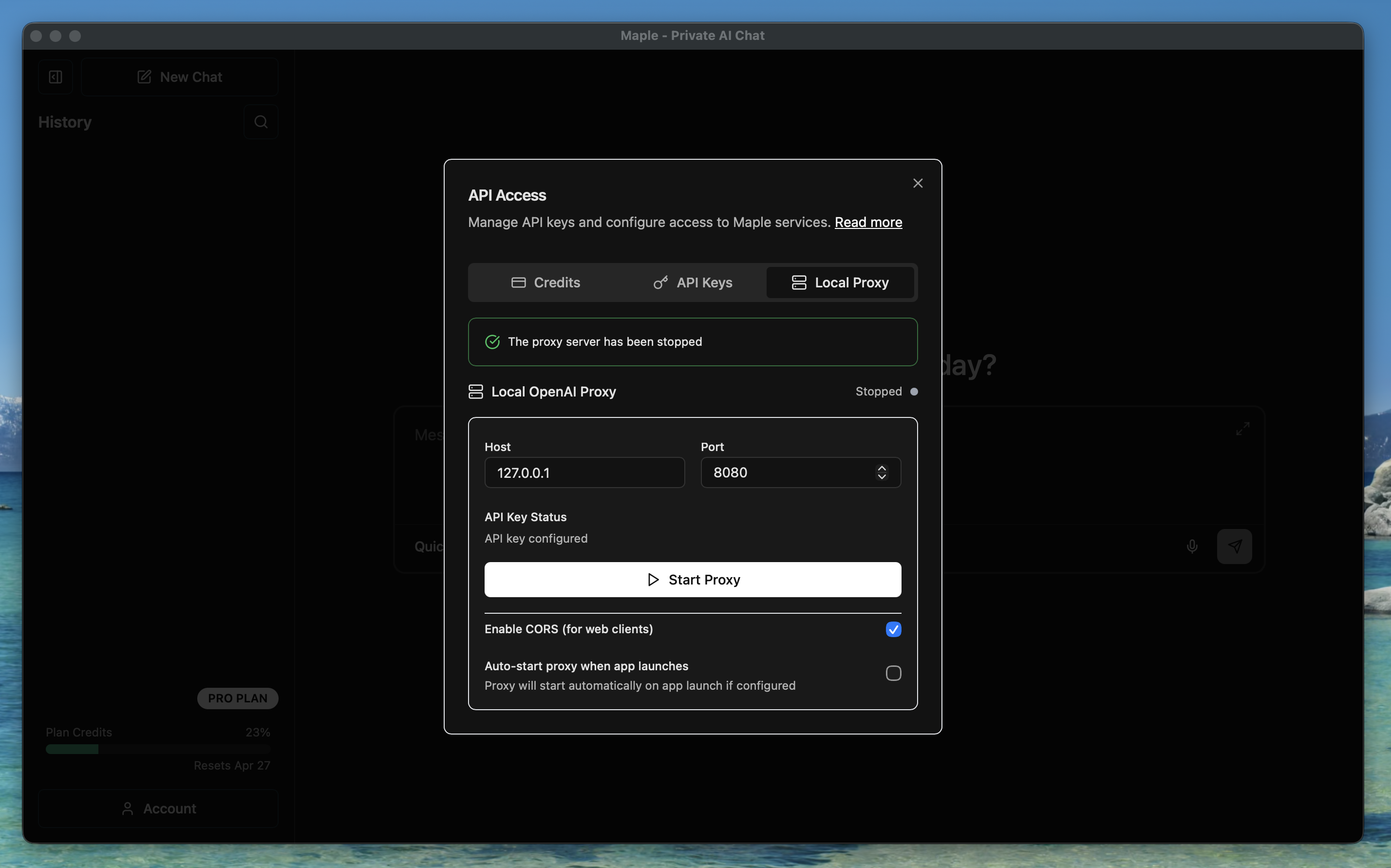
Maple AI Desktop Local Proxy tab
At the time of writing, we recommend Kimi K2.5. It's fast, produces few errors, and handles the Clams agent skills well in our testing.
How Maple's Encryption Works
Data is encrypted on your device before transmission. According to Maple's documentation, the encrypted payload is processed inside hardware-isolated enclaves that even Maple's operators can't access. The enclave code is open-source with reproducible builds, so you can verify what's running matches the published source. At the time of writing, Maple states: no training on user data, no third-party sharing, and zero retention after processing. Read more here.
Configure Opencode for Maple
Install Opencode:
curl -fsSL https://opencode.ai/install | bashPoint Opencode at the Maple proxy by creating ~/.config/opencode/opencode.json:
{
  "$schema": "https://opencode.ai/config.json",
  "model": "maple/kimi-k2-5",
  "provider": {
    "maple": {
      "npm": "@ai-sdk/openai-compatible",
      "name": "Maple AI",
      "options": {
        "baseURL": "http://127.0.0.1:8080/v1",
        "apiKey": "YOUR_MAPLE_API_KEY"
      },
      "models": {
        "kimi-k2-5": {
          "name": "Kimi K2.5",
          "tools": true
        }
      }
    }
  }
}
Replace YOUR_MAPLE_API_KEY with the key you copied from the API Access page. Note that this stores the key in plain text: keep the file out of version control and off shared machines, and if Opencode's docs recommend a dedicated way to store credentials, prefer that. This config adds Kimi K2.5 and sets it as your default model. Model IDs can change over time; to see what's currently available, run:
curl http://127.0.0.1:8080/v1/modelsLaunch Opencode:
opencode
Verify the config worked: Maple AI should be your default provider
Talk to Your Books
Before you start querying, run /skills in Opencode and select clams from the list. This loads the Clams domain knowledge so the agent knows every command, workflow, and prerequisite step. Once loaded, you can start adding connections, generating reports, and chatting with your Bitcoin books.
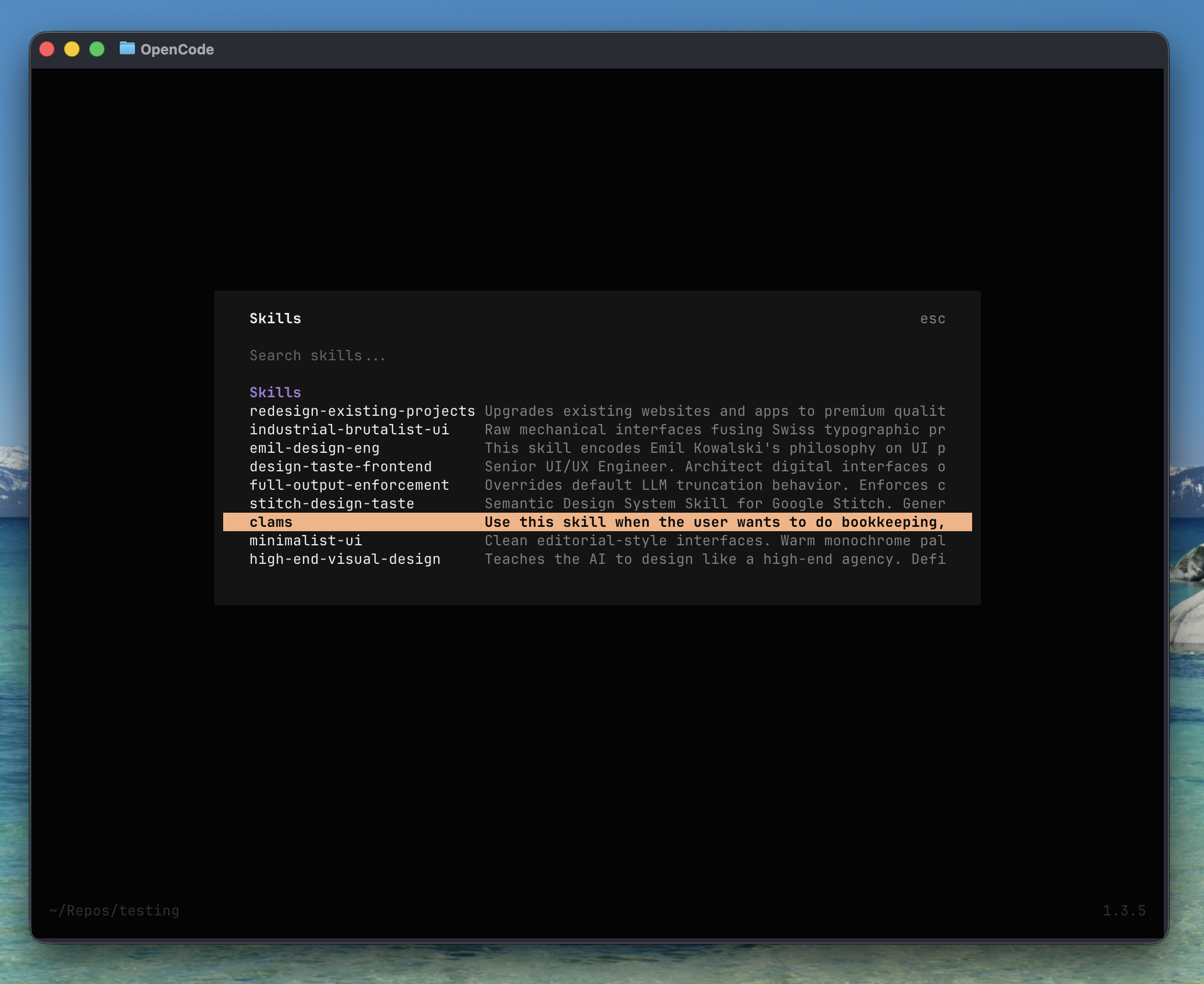
Run /skills and select clams to load the agent skill
- "Add a new xpub connection, with a label of cold-storage. Here is the xpub: [pasted xpub]"
- "What's my total balance across all wallets?"
- "Show me transactions from my River account this month."
- "Generate a Q1 2026 capital gains report as a PDF."
- "What's the cost basis on this transaction? [pasted txid]"
Every query is encrypted before it leaves your machine. Your plaintext only exists inside the hardware-isolated enclave where the model runs, nowhere else.
Private AI, Private Books
An AI agent in your terminal that queries and reports on your Bitcoin books, backed by an accounting engine that runs locally and an AI layer that encrypts everything in transit. Your data stays private by design.
Any feedback or issues getting set up, shoot us an email at support@clams.tech.
Clams Team